Copy and Pasting in Inspiration RD isn't working
Copy and Pasting in Inspiration RD isn't working
Using the recommended Chrome or Edge web browser, you should be able to copy and paste text. If this isn't working, please check the following permissions.
1. Click on the padlock symbol by the web address:
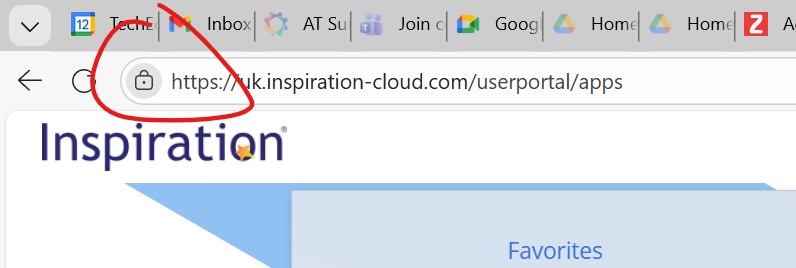
Make sure permissions for Clipboard is set to Allowed.
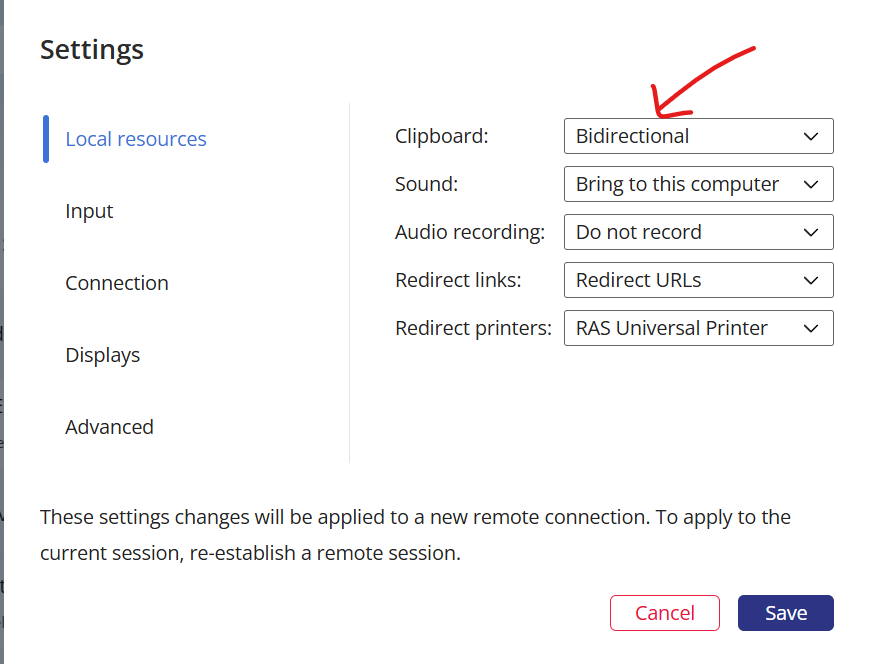
2. Go to your My Profile section and click on settings.
Make sure the setting for Clipboard to set to Bidirectional.
Related Articles
Specifications for Inspiration RD
Requirements Users access Inspiration RD via a web browser on a macOS, Chromebook or Windows device. Inspiration RD requires: Internet Access HTML 5 browser - Chrome and Edge are recommended File Storage We provide each user with a secure online ...Service Level Agreement for Inspiration RD
Our Commitment to You: Inspiration RD This document explains what you can expect from Inspiration RD and our team. It’s our promise to you, so we’re all on the same page about how the app should perform and what we'll do if things don't go as ...Logging into Inspiration RD/ Cloud
How to log into Inspiration RD/ Cloud? The website to log into Inspiration RD/ Cloud is based on your country login: Americas: https://us.inspiration-cloud.com/userportal/ Europe, Australia and Rest of the World: ...Inspiration User Manuals
Inspiration User Manuals Download the user manual for your version of Inspiration. Inspiration 12 - coming soon Inspiration 11 Inspiration 10Technical specification for Inspiration 12
Click here to download the full technical specification Operating System Inspiration 12 is compatible with Windows 10 and Windows 11. After purchasing the software, there are two editions to choose from when installing the software. Inspiration 12 - ...